
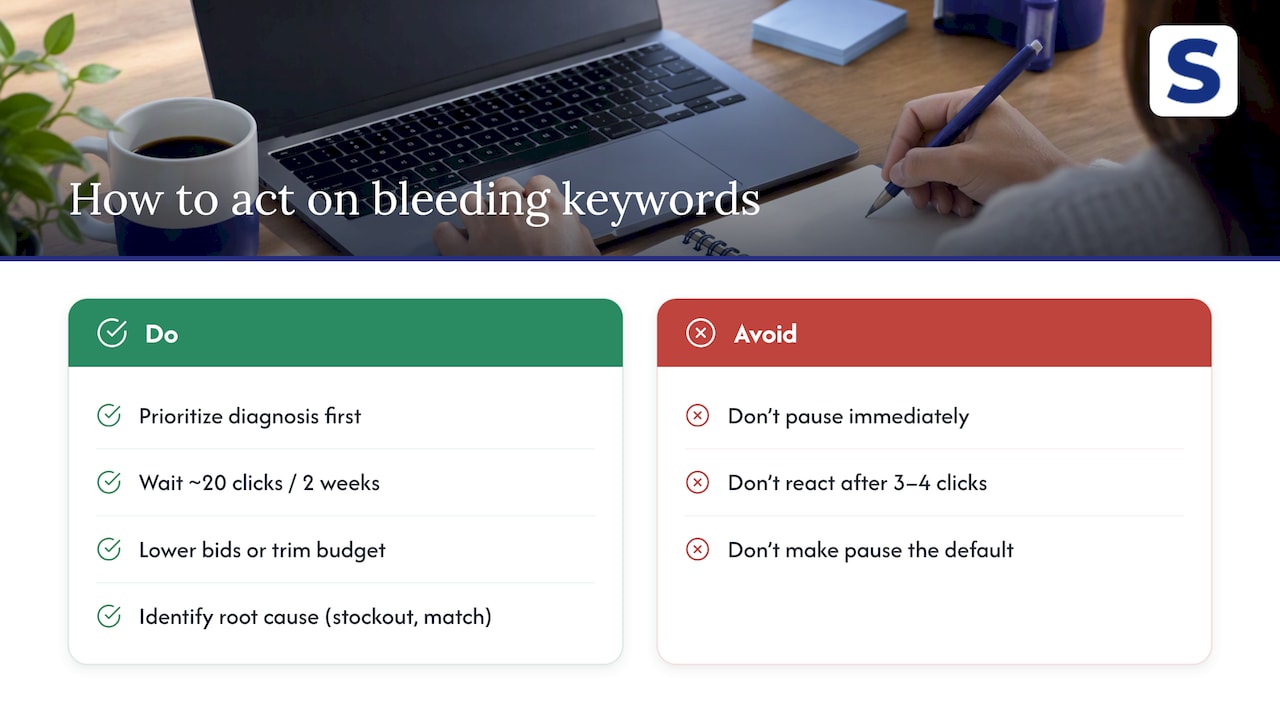
The right move when a keyword starts bleeding money is to diagnose it with the search term report before touching anything: check for zero orders against real spend, a sudden ACoS spike, repeated ASIN hits, or a stockout. Pause immediately only for extreme waste or obvious irrelevance. Everything else deserves a short verification window first, because pulling a keyword too early can erase the learning your campaign already paid for.
TL;DR:
- Amazon recommends waiting roughly 20 clicks or one to two weeks before judging a keyword; three clicks without sales do not establish waste.
- Use negative exact or phrase keywords for irrelevant searches, but block repeated ASIN placements with negative product targeting rather than keyword negatives.
- When a stockout drives weak performance, lower bids or budgets instead of pausing; Sponsored Products ads pause automatically, and adjustments preserve campaign learning.
- Compare results at day 8 and day 15 for spend and ACoS, then restart a paused keyword gradually with a small bid increase before raising its budget.
Table of Contents
- How to locate bleeding keywords using Amazon reports and filters
- Compare pausing, negative targeting, bid cuts, and budget shifts
- Exact steps to pause keywords safely from the ads console or a CSV
- Measuring the impact and safely restarting paused keywords
- What the data actually supports about pausing keywords
- FAQ
- Sources
How to locate bleeding keywords using Amazon reports and filters
Finding wasted spend starts with the right export, not a gut feeling. Pull the search term report, the campaign performance report, and the placement report for the same date range so you can cross-check spend against conversions at every level.
- Export the search term report and sort by spend, descending, so the biggest offenders surface first.
- Filter for zero conversions alongside spend above your average cost per sale: this combination is the clearest sign of waste.
- Flag any term with ACoS several multiples above your campaign target, plus unusual CTR or CVR swings and sudden CPC jumps.
- Separate alphanumeric entries (ASINs) from actual search terms. These come from automatic campaigns and product-attribute targeting, and they behave differently from keyword traffic, according to Seller Central forum guidance.
- Rule out inventory and attribution issues before blaming the keyword: check whether the ASIN went out of stock during the window, since Sponsored Products and Sponsored Display ads auto-pause on stockout, which can distort your numbers.
Amazon’s own targeting guide recommends testing match types for at least one to two weeks and waiting for roughly 20 clicks before judging whether a keyword or potential negative target should be cut. A keyword with three clicks and no sales is noise, not a verdict. For a repeatable version of this audit, our ad spend reporting guide walks through building the same export into a recurring routine.
Compare pausing, negative targeting, bid cuts, and budget shifts
Not every bleeding keyword needs the same fix. Matching the action to the cause saves you from overcorrecting and losing data you will need later.
- Immediate manual pause fits only clear cases: a term with dozens of clicks, meaningful spend, and zero orders, or obvious mismatches like a baby product term appearing on a power tool listing.
- Negative keywords or negative ASINs work best for recurring irrelevant traffic or repeated ASIN rows in the search term report. Amazon’s negative product targeting guidance treats ASIN entries as detail-page impressions to block, not failed keywords to delete.
- Lower bids or budgets when the real driver is a short-term inventory constraint. Seller Central guidance on stockouts notes that trimming bids or budgets preserves campaign learning better than a full pause, since Sponsored Products ads already pause automatically once stock runs out.
- Automated rules or ad scheduling make sense once you have a stable threshold, such as pausing any term that crosses a spend limit you define with zero orders over a set period, so you are not manually checking reports every morning.
Our negative keyword guide covers list-building in more depth, and our bidding strategy guide breaks down when a bid cut beats a pause.
Pro Tip: Lower the bid by half before pausing outright. You keep the keyword’s history intact, and you can always cut it fully a week later if spend keeps climbing.
A full pause shows savings on your next report pull. Bid or budget cuts take a week or two to show the same effect, but they leave the keyword’s conversion history alive for future testing.
Exact steps to pause keywords safely from the ads console or a CSV
Treat every pause as a recorded decision, not a quick click. That discipline is what lets you reverse a bad call later without guessing why you made it.
- Export the search term report with columns for spend, clicks, orders, ACoS, and conversion rate, then filter for your zero-order, high-spend threshold.
- Cross-reference flagged terms against the campaign performance report to confirm the waste is not isolated to one placement or day.
- Add negative exact or negative phrase keywords at the ad group level for isolated issues, and at the campaign level when the same irrelevant term shows up across multiple ad groups.
- For ASIN rows, apply negative product targeting rather than a keyword-level negative, since these are detail-page impressions rather than search queries.
- Pause the keyword, ad group, or campaign only after the negative is live, then label the change with the date and reason.
- Keep a labeled folder with the original CSV, a screenshot of the flagged rows, and a note like “high spend, no orders, review in two weeks.”
- Set a calendar reminder for your re-check date so paused terms do not sit forgotten for months.
- If you use automated rules or third-party tools to pause based on thresholds, keep the same audit trail. Automation should log a reason, not just execute silently.
Measuring the impact and safely restarting paused keywords
Once you have paused or adjusted a keyword, give it enough runway to show whether the change worked before declaring victory. A week of data on a low-volume campaign tells you far less than two to three weeks on a high-traffic one.
| Metric | What to watch for | Suggested window |
|---|---|---|
| Spend | Drop in wasted dollars on the flagged term or ASIN | Day 15 |
| ACoS | Movement toward your campaign target | Day 15 |
| Conversion rate | Stable or improved rate on remaining terms | Day 8 to day 15 |
| CPC | No unexpected spike on adjacent keywords | 14 days |
Compare the pre and post windows side by side, and where possible hold a similar ASIN steady as an informal control so you know the change is not just seasonal drift. If you decide to bring a paused keyword back, ramp it gradually: a small bid increase for a few days, then a modest budget bump, rather than returning it to its original spend level overnight. Feed whatever you learn into your weekly keyword harvest and negative list, a routine we outline in our keyword harvesting guide, so the same bleeding pattern does not quietly return next month.
Our workflow for tracking a pause decision
We built our review process around a simple problem: a seven-day snapshot after a pause often looks good or bad for reasons that have nothing to do with the keyword itself, like a weekend sales dip or a competitor’s temporary stockout. Tracking a change at day 8 and day 15 filters out that noise and shows whether the pause actually moved spend and conversions in the right direction.
Every recommendation we surface comes with the exact campaign data behind it, spend, orders, and ACoS for the flagged term, so you can see why a pause or bid cut is suggested instead of taking it on faith. The workflow runs diagnose, apply a staged mitigation like a bid cut or negative, track at day 8 and day 15, then confirm or reverse.
A pause you can’t measure is just a guess with extra steps.
— Selloop
What the data actually supports about pausing keywords
The twenty-click, two-week rule gets treated as a minor footnote in most PPC advice, but it deserves more weight than that. Sellers who pause after three or four clicks are often reacting to normal variance, not a genuine problem, and they lose whatever conversion signal that keyword had already built.
The bigger blind spot is treating pause as the default action. A full pause is the most destructive option on the list: it is also the easiest to click, which is probably why it gets overused. Lowering a bid or trimming a budget solves the same spend problem in most cases while keeping the keyword’s history intact for later.
If you take one thing from this, prioritize the diagnosis over the action. A keyword that is bleeding because of a stockout needs a completely different fix than one that is bleeding because it is simply the wrong match type. Spend your time there first, and the right action usually becomes obvious.
How Selloop surfaces the triage and the result
Running this audit manually every week is realistic for one or two accounts. It gets harder fast once you are managing several campaigns or client accounts at once, which is the gap our platform is built to close.
- We use AI to analyze multiple Amazon PPC campaigns at once and surface which keywords, ad groups, or ASIN targets are likely wasting spend, each flagged with supporting data.
- We track the result of every change, pause, bid cut, or negative, over a period of weeks, so you see the impact instead of relying on partial reports.
If you manage ad budgets for multiple brands, pairing this with a broader conversion audit can help you catch issues on the landing page side too, since a bleeding keyword sometimes points to a page that isn’t converting traffic once it arrives. Check the pricing page or start a free trial to see where your own campaigns stand.
FAQ
How do I pause a listing on Amazon?
Pausing a listing is different from pausing a keyword: you do it from Manage Inventory in Seller Central by editing the listing status, not from the advertising console. If your goal is to stop a specific keyword or ASIN from spending ad dollars, use the campaign manager’s pause button or a negative target instead.
How do I search for keywords on Amazon?
You can review the keywords already driving traffic through the search term report in Campaign Manager, which shows the exact customer search queries that triggered your ads. For finding new keywords to target, Amazon’s targeting guide covers match types and how broad, phrase, and exact targeting surface different search terms.
What counts as a keyword in Amazon advertising?
A keyword is a word or phrase you target so your ad shows when a shopper searches for it, such as “stainless steel water bottle” or a specific brand name. Search term reports sometimes also show ASINs instead of keywords for automatic campaigns, and those are treated differently since they represent product pages rather than search queries, per Seller Central guidance.
Can I pause my Amazon purchase history?
Amazon purchase history is a personal shopping feature with its own privacy settings and has no connection to advertising campaigns or keyword management. If you are looking to control spend on underperforming keywords, that is handled entirely within Campaign Manager, not your personal account settings.
How soon should I judge a new keyword before pausing it?
Amazon’s own guidance suggests waiting for roughly 20 clicks or one to two weeks of data before judging a match type test or a potential negative target. Acting sooner usually means reacting to normal variance rather than a real performance problem, according to Amazon’s targeting guide.
Sources
- A guide to targeting with Sponsored Products | Amazon Ads
- Search Terms in Sponsored Products Auto-Campaigns Showing ASINs Instead of Keywords
- Best Practices for Amazon Ads During an Upcoming Stockout? (Before/During/After)
- Advertising help: Negative product targeting / ASIN guidance | Amazon Ads