Zero impressions means Amazon didn’t enter your ad into the auction. Most often that’s because the campaign isn’t actually running, your bid sits below the auction floor for that placement, or the listing itself is ineligible to serve. Before touching bids, run three checks: campaign and ad status in the Advertising Console, budget levels plus stock and Buy Box ownership, and what the Search Term and Placement reports actually show. Amazon’s own support guidance confirms that impression and click data can lag up to 72 hours, and a campaign can show “Delivering” while that data hasn’t populated yet.
- Check status: is the campaign “Delivering,” or quietly paused/archived?
- Check eligibility: in stock, Buy Box owned, listing not suppressed?
- Check the reports: any impressions at all on any keyword, or a flat zero across the board?
Pro Tip: If the campaign says “Delivering” and you still see zero impressions after 72 hours, the problem is almost never patience. It’s eligibility or bid floor.
Key Takeaways
Zero impressions on Amazon Ads almost always trace to campaign status, budget exhaustion, listing eligibility, or a bid sitting below the auction floor, and each has a specific, checkable fix.
| Point | Details |
|---|---|
| Check status before bids | Confirm the campaign reads “Delivering,” not paused, archived, or out of budget. |
| Listing eligibility comes first | Buy Box ownership, in-stock status, and no suppression flags all matter more than bid size. |
| Test one variable at a time | Raise a bid 10 to 20 percent above Amazon’s suggestion on a single ad group before judging results. |
| Respect the reporting lag | Wait up to 72 hours before reading impression data, and 7 to 14 days to confirm a trend. |
| Track the recheck | Selloop checks campaign health and prepares bid recommendations you review and apply, with verdicts at day 8 and day 15, without manual spreadsheets. |
Table of Contents
- Quick Troubleshooting Checklist for No Impressions on Amazon Ads
- Why Campaign Status and Budget Settings Block Delivery
- Could Your Bid Be Too Low to Enter the Auction?
- Is Your Listing Actually Eligible to Advertise?
- How to Read the Search Term Report When Impressions Are Zero
- How Long Should You Wait After Making a Change?
- A Step-by-Step Workflow to Fix No Impressions in One Session
- How Selloop Speeds Up Diagnosis and Confirms What Actually Worked
- Can Account Health Problems Quietly Kill Your Ad Delivery?
- Does Your Geographic Targeting Explain the Missing Impressions?
- Are Device or Placement Settings Limiting Your Reach?
- Does Seasonality Explain a Sudden Drop in Impressions?
- What Actually Matters Most When Impressions Hit Zero
- Fix It Once, Then Prove It Worked With Selloop
- Sources
Quick Troubleshooting Checklist for No Impressions on Amazon Ads
Run this before you change a single bid.
- Open the Advertising Console and confirm the campaign status reads “Delivering,” not “Paused,” “Out of budget,” or “Archived.”
- Check daily budget consumption. A campaign can burn through its budget in the first hour of the day and sit idle the rest of the time.
- Confirm the campaign’s start date has actually arrived and the end date hasn’t quietly passed.
- Open the product page and confirm you see an active “Add to Cart” button, not a suppressed or “currently unavailable” listing.
- If everything above checks out, wait. Amazon Ads support notes that reporting data can take up to 72 hours to show up, even on a live campaign.
Most zero-impression cases resolve at step 1 or step 4. The rest is diagnostics.
Why Campaign Status and Budget Settings Block Delivery
Status and budget are the two most common culprits, and both are visible in under a minute once you know where to look.
Open Campaign Manager and look at the Status column. “Delivering” means Amazon is actively entering your ads into auctions. “Paused” and “Archived” mean it isn’t, even if you swear you turned it on last week. A surprising number of low-visibility Amazon ads trace back to a campaign someone paused during a price change and never reactivated.
Budget causes a subtler version of the same problem. A campaign can show “Delivering” and still stop serving mid-day because the daily budget ran out. That’s not a bug. It’s Amazon respecting your spend cap exactly as instructed.
- Confirm start/end dates match your intent, especially on campaigns cloned from old promotions.
- Check that your target country matches your marketplace currency and inventory location.
- Watch for placement bid caps that quietly limit where your ad can appear.
Pro Tip: Set a budget alert in Seller Central if your daily cap is under $20. Small budgets exhaust fast on competitive keywords, and a campaign that’s “technically live” for 23 hours and dead for one still counts as underperforming.
Could Your Bid Be Too Low to Enter the Auction?
Yes, and this is more common than most new advertisers assume. Amazon runs a real-time auction for every search and product page. If your maximum bid sits well under the competitive threshold for that placement, your ad never enters the auction at all. There’s no warning message. It just doesn’t show.
The safest baseline is Amazon’s own suggested bid range, visible when you create or edit a keyword. Search Engine Land’s analysis of delivery failures confirms that under-bidding is one of the most common reasons ads never enter the auction, and recommends testing upward from the suggested range rather than guessing.
- Start at or slightly above the suggested bid, not the campaign minimum.
- Increase bids gradually if impressions remain flat after waiting a couple of days.
- Change one variable at a time. A single ad group, one bid adjustment.
- Watch impressions first, not sales. Impressions confirm you’re in the auction; conversions are a separate problem.
A structured, single-variable bid test removes the guesswork here. Bump the bid, wait out the reporting lag, and read the result before touching anything else.
Is Your Listing Actually Eligible to Advertise?
This is the check most sellers skip, and it’s the one that quietly wastes the most time. Sponsored Products ads require Buy Box ownership. If a competing seller has it, or if the listing is buried under a hijacker, your ad has nothing to attach to and won’t serve, no matter how competitive your bid is.
Search Engine Land’s breakdown of non-delivering campaigns puts account-level blockers like Buy Box loss and suppressed listings ahead of bidding as a root cause, and that matches what shows up in most seller troubleshooting threads.
- Confirm you own the Buy Box on the exact ASIN you’re advertising.
- Check for out-of-stock status or a “suppressed listing” flag in Seller Central.
- Look for a policy violation notice; a flagged listing gets pulled from ad eligibility even if the product page looks normal to you.
- Search your main keywords on Amazon and see if your ASIN appears organically at all. If it’s not indexed, add the missing terms to your title, bullets, or backend search terms and give it a day to reindex.
Fix eligibility before you touch bids. Raising a bid on a suppressed listing changes nothing.
How to Read the Search Term Report When Impressions Are Zero
The Search Term Report and Placement Report turn guesswork into evidence, and reading them correctly saves you from optimizing the wrong thing entirely.
- Download the Search Term Report from Campaign Manager, filtered to the last 14 days.
- Sort by impressions. A keyword with real search volume that shows zero impressions almost always points to a bid too low to clear the auction floor.
- A keyword with genuinely tiny search volume will show low impressions everywhere, not just in your account. That’s demand, not a setting problem.
- Cross-check the Placement Report to see whether you’re missing impressions specifically on top-of-search versus product pages. Losing one but not the other narrows the fix to placement bid modifiers.
- If you’re running an auto campaign, use it as a research tool. Harvest the search terms that are actually converting, then graduate them into a manual campaign on exact match with a competitive bid.
- Add poor performers as negative keywords so budget stops leaking toward terms that never had a real shot at converting.
Seller Central’s own troubleshooting threads consistently point to pulling the Search Term Report before assuming a targeting problem, since it separates “no volume” from “filtered by bid” in a way the dashboard alone won’t show you.
Pro Tip: If your negative keyword list hasn’t been touched in over a month, that’s usually where the leak is, not the bid.
How Long Should You Wait After Making a Change?
Not as long as you think, but longer than most sellers give it. Amazon Ads support states plainly that impression and click data can take up to 72 hours to fully populate in Campaign Manager. A campaign can read “Delivering” the entire time.
Give a bid or budget change 24 to 48 hours before judging it. Give the broader trend 7 to 14 days before deciding it worked. When you escalate to Amazon support, bring screenshots of campaign status, the exact bid history, and both reports. Vague tickets get vague answers.
A Step-by-Step Workflow to Fix No Impressions in One Session
Work top to bottom. Each step either fixes the problem or rules out a cause.
- Fast checks (5 minutes): Confirm status is “Delivering,” budget hasn’t been exhausted, stock is available, and you own the Buy Box.
- Report checks (10 minutes): Pull the Search Term and Placement reports. Look for keywords with real search volume showing zero impressions, a sign the bid floor is the blocker.
- Controlled bid test (24 to 48 hours): Raise the bid on one ad group by 10 to 20 percent above the suggested range. Change nothing else. Wait for the reporting lag to clear before reading results.
- Listing fixes (ongoing): If indexation or suppression is the issue, update the listing and recheck in 24 hours.
- Trend monitoring (7 to 14 days): Confirm the fix holds beyond the first burst of activity, not just a one-day spike.
Pro Tip: A single-variable test beats changing five things at once every time. If you raise the bid, add negative keywords, and fix the listing all in the same hour, you’ll never know which move actually worked.
How Selloop Speeds Up Diagnosis and Confirms What Actually Worked
Running through campaign status, budget, Buy Box, indexation, and two separate reports by hand takes real time, and most sellers do it inconsistently.
- Campaign health scoring flags the accounts and ad groups losing impressions before you go hunting manually.
- Negative keyword suggestions catch the leaks a manual Search Term Report review often misses.
- Bid recommendations come with the data behind them, so you’re not guessing at a 10 to 20 percent test increase.
- Selloop tracks every change you approve, with verdicts at day 8 and day 15, so you see whether a fix actually held instead of eyeballing a spreadsheet.
Sellers running lean operations don’t have time to pull two reports, cross-reference bid history, and wait two weeks to know if a change worked.
Can Account Health Problems Quietly Kill Your Ad Delivery?
Yes, and this is the blocker most sellers investigate last, when it should be closer to first. Amazon ties ad eligibility to account standing. A policy violation, an authenticity complaint, or a pattern of late shipments can trigger restrictions that suppress ads on specific ASINs, or in severe cases, across your entire advertising account, regardless of how well-funded your budget is or how competitive your bid looks.
Check your Account Health dashboard in Seller Central before assuming the problem lives inside Campaign Manager. Look specifically for:
- Listing-level policy violations tied to the exact ASIN you’re advertising.
- Product authenticity or safety complaints, which can trigger an automatic ad suppression separate from the listing suppression itself.
- Late shipment rate or order defect rate warnings, which occasionally cascade into broader account restrictions that affect ad eligibility.
- Any pending appeal or plan of action. Ads typically stay restricted until Amazon closes the case, not just when you submit a response.
The frustrating part is that these restrictions don’t always show up as an obvious red banner inside the advertising console. Sometimes the campaign looks completely normal, budget intact, status “Delivering,” and the ad still never enters an auction because the account holding it has a flag Amazon considers separately. If you’ve run through every campaign and listing check with no answer, treat Account Health as the next stop, not a last resort. A five-minute look there can save you days of tweaking bids that were never going to matter.
Does Your Geographic Targeting Explain the Missing Impressions?
Often, yes, and it’s an easy setting to overlook because it’s usually set once at campaign creation and never revisited. Amazon Ads lets you target specific states, regions, or the entire country your marketplace covers. If a campaign was narrowed to a handful of states during setup, maybe for a regional promotion, and nobody widened it back out, you’re competing for a much smaller slice of available search volume than you think.

Smaller geographic scope means fewer eligible auctions, which means fewer impressions even with a perfectly competitive bid. This shows up most often in campaigns cloned from a previous promotional push. The clone keeps the old geographic restriction, and the new campaign quietly inherits a limited footprint nobody meant to keep.
Check the targeting tab for every active campaign and confirm the geographic scope matches what you actually intend to cover. If you’re advertising nationally but the setting shows a partial region list, that alone can explain a flat zero on impressions for keywords that should have plenty of demand.
There’s a second layer here worth watching: even with full national targeting, demand itself isn’t distributed evenly. Some regions search and buy specific product categories far more than others, so a technically correct broad-targeting setup can still produce lower impression volume than a competitor concentrated in higher-demand regions. That’s not a setting to fix. It’s a demand pattern to plan around, and it’s worth factoring into how you read impression trends over time rather than assuming every dip points to a broken configuration.
Are Device or Placement Settings Limiting Your Reach?
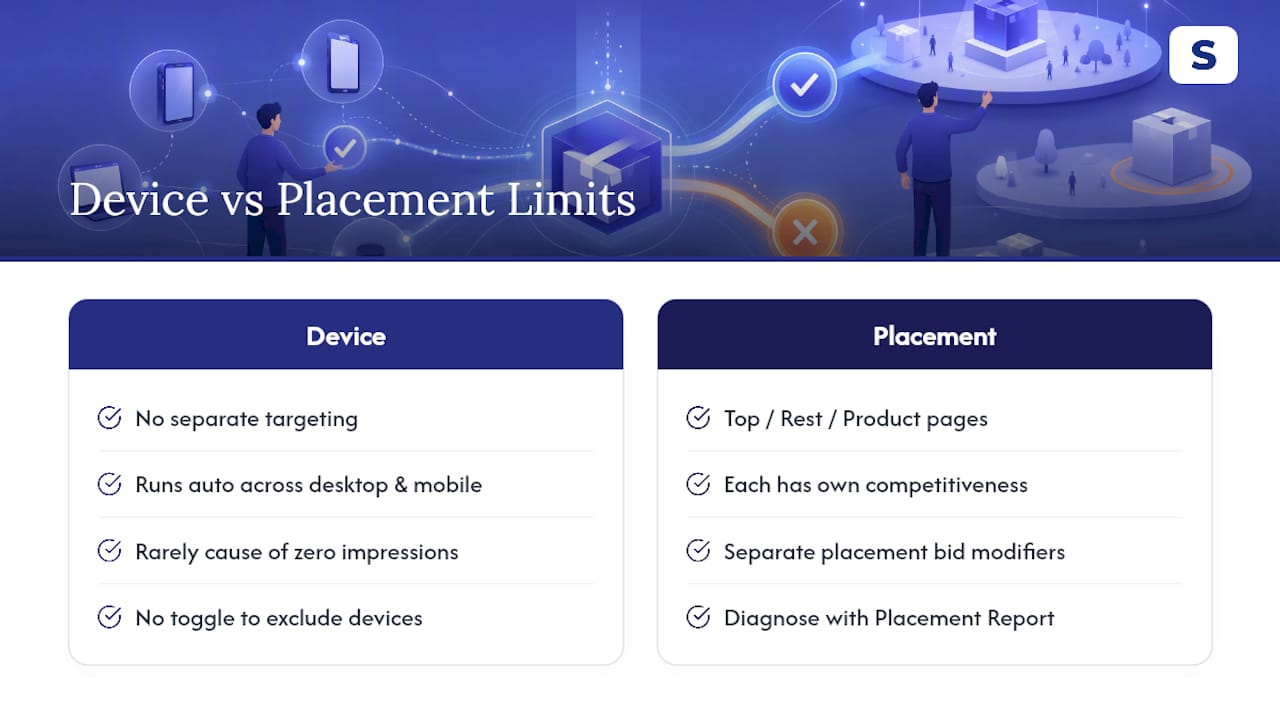
They can, and this is one of the more technical blockers because Amazon doesn’t separate device targeting the way some other ad platforms do. Sponsored Products and Sponsored Brands campaigns run across desktop and mobile automatically. You don’t get a toggle to exclude one, so device targeting itself is rarely the direct cause of zero impressions.
Placement is a different story, and it’s fully within your control. Amazon splits Sponsored Products delivery across three placement types: top of search, rest of search, and product pages. Each placement carries its own competitive intensity, and you can apply bid modifiers to each one separately. Set a placement modifier too conservatively, or leave it at the default when competitors are bidding aggressively for top-of-search real estate, and your ad gets consistently outbid for that specific slot while still theoretically eligible everywhere else.
This is exactly what the Placement Report is built to reveal. If your Search Term Report shows a keyword getting some impressions but far fewer than its search volume would suggest, break it down by placement before touching the base bid. You may be winning rest-of-search auctions just fine while getting shut out of top-of-search entirely, a pattern that a blanket bid increase fixes inefficiently and expensively compared with adjusting the specific placement modifier that’s actually losing.
Sponsored Brands campaigns add another layer, since they compete specifically for top-of-search banner placement and carry their own separate bid dynamics from Sponsored Products. If you’re running both, compare their placement reports independently. Don’t assume one campaign’s bid health tells you anything about the other’s.
Does Seasonality Explain a Sudden Drop in Impressions?
Sometimes, and this is the explanation sellers reach for too quickly, before ruling out the mechanical issues covered earlier. Search volume genuinely does rise and fall with the calendar. A category tied to a specific season, holiday, or event will see impressions climb as demand builds and fall off once it passes, and that’s true even for a campaign that’s perfectly configured.
The trap is treating every impression drop as seasonal when it’s actually a bid floor problem, a Buy Box loss, or a budget cap hit earlier in the day. Genuine seasonal demand drops tend to be gradual and match a pattern you can see across prior years or across your competitors’ apparent activity. A sudden drop to zero, especially one that happens overnight rather than over a week or two, points much more strongly toward a configuration or eligibility issue than a market shift.
The way to tell the difference is to check whether the auction itself has gotten more competitive. If suggested bid ranges for your core keywords have climbed noticeably, that’s a signal other advertisers are chasing the same seasonal demand and pushing the floor higher, which can price out a bid that was perfectly competitive a month earlier. If suggested bids haven’t moved but your impressions have collapsed anyway, seasonality isn’t the explanation. Go back to campaign status, budget, and listing eligibility before writing the drop off as market timing.
What Actually Matters Most When Impressions Hit Zero
Most advice online treats bid increases as the default first move, and that’s backward. The evidence points the other way: eligibility problems, Buy Box loss, suppressed listings, exhausted budgets, are cheaper to find and cheaper to fix than a blind bid increase, and they explain a large share of zero-impression cases that sellers blame on bidding.
The conventional wisdom oversells patience, too. Waiting three days because “the algorithm needs time to learn” is often just an excuse to avoid checking Account Health or the Placement Report. Amazon’s own 72-hour reporting window is about data visibility, not campaign warmup. Those are different problems, and conflating them wastes a week.
If you take one thing from this, prioritize the cheap checks before the expensive ones. Status, budget, stock, and Buy Box cost you five minutes. A bid test costs you two days and real ad spend. Run the five-minute checks first, every time, before you touch a single bid.
— Selloop
Fix It Once, Then Prove It Worked With Selloop
Running the checklist above manually, campaign status, budget pacing, Buy Box, Search Term Report, Placement Report, then a controlled bid test, takes real hours if you’re doing it across more than a couple of campaigns. Selloop reviews every campaign in an account, flags the ones actually losing impressions to a bid floor or a listing issue, and hands you a specific recommendation with the data behind it instead of a vague “increase your bid” suggestion.
Start a trial at Selloop and run your first campaign health check today.
Sources
- Why your Amazon Ads aren’t delivering: 6 critical issues to fix — Search Engine Land
- Troubleshoot your campaign for impressions | Amazon Ads Support Center
- Seller Central forum discussion — diagnosing clicks with no conversions